Table of Content
- 1. InVideo AI : From Prompt to Published Short
- 2. Opus Clip : Repurposing Long‑Form into Shorts
- 3. SubMagic : High‑Retention Captions and Hooks
- 4. 2short.ai : YouTube‑Native Repurposing Engine
- 5. Descript : Edit Shorts by Editing Text
- 6. CapCut : Creator‑Friendly Editing with AI Assist
- 7. VidIQ : Strategy and Analytics for Shorts
- How to Combine These Tools into a Shorts System
- Verdict: Which AI Tool Should You Start With?
YouTube Shorts has shifted from being a side feature to becoming a serious discovery engine for creators, brands, and agencies. If you want to grow today, you can’t rely only on a couple of uploads a month; you need a system that can turn ideas, scripts, and long‑form videos into a steady stream of short, punchy content. AI tools are what make that system possible at scale.
In this article, you’ll discover seven of the best AI tools for YouTube Shorts right now, how they actually fit into a real‑world workflow, what they do well, and where they fall short. By the end, you’ll be able to pick a stack that matches your style whether you’re a faceless automation channel, a talking‑head educator, or an agency handling multiple clients.
1. InVideo AI : From Prompt to Published Short
What InVideo AI Does
InVideo AI is built for creators who want to go from idea to finished Short with as few steps as possible. Instead of starting with footage, you can start with a simple text prompt or a short script. The tool then generates a structured video: it writes or adapts the script, creates scenes, adds relevant stock or AI‑generated visuals, picks an AI voiceover, layers in background music, and applies on‑screen text and subtitles.
This “prompt‑to‑video” approach is especially useful for faceless channels or educational shorts where you are more focused on sharing information than showing your face. You can produce listicles, tips, news recaps, and niche explainers without ever opening a complex timeline editor.
Strengths and Weaknesses
The biggest strength of InVideo AI is speed. Once you have a content idea or topic cluster ready, you can produce multiple Shorts in one sitting. The editor also lets you refine almost every element: the script, clip selection, voice, captions, and pacing so you’re not locked into a purely automated output. For creators who dislike editing but care about message and structure, this is a powerful combination.
However, there are trade‑offs. Because the tool leans heavily on templates, the visual style can start to feel predictable if you do not customise colours, fonts, and layouts. If your brand demands a very specific aesthetic or you rely on custom footage, you might need to combine InVideo AI with a more manual editor for final polish.
Pricing and Best Use Cases
InVideo AI follows a freemium and subscription model. The free tier typically allows a limited number of exports with watermarks and standard media access, while paid plans often start in the range of about 20–30 USD per month and go higher for more exports, higher resolutions, and premium assets. It is best suited for faceless YouTube Shorts channels, educational creators, news‑style formats, and anyone who wants to push out consistent Shorts without getting deep into traditional editing.
2. Opus Clip : Repurposing Long‑Form into Shorts
Why Creators Like Opus Clip
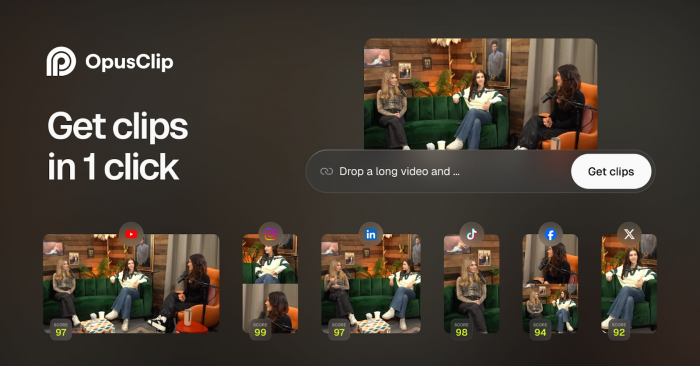
Opus Clip is a favourite among creators who already produce long‑form content: podcasts, interviews, webinars, or commentary videos and want to turn those into Shorts without spending hours on manual clipping. You upload your video (or connect your channel), and the AI scans it to detect segments that are likely to keep viewers engaged. It then generates multiple short, self‑contained clips that feel native to short‑form platforms.
A key reason creators appreciate Opus Clip is its automatic reframing. The tool converts landscape videos into vertical or square formats, tracking the speaker or main area of action so that the subject stays centred in 9:16. It also auto‑adds captions and stylised subtitles, giving your Shorts the bold, high‑contrast look that performs well on mobile.
Agencies and editors who manage multiple clients often rely on Opus Clip because it lets them scale output from each long‑form video. Instead of manually scanning an hour‑long podcast, they can start from AI‑generated highlights, quickly approve the best ones, make small edits, and then move on to the next project.
Pros and Cons in Practice
The main advantage of Opus Clip is the amount of time it saves. If your core content is long‑form, you can realistically generate dozens of Shorts from a single upload. The “viral‑style” templates, with punch‑in zooms and meme‑like formatting, help your clips feel aligned with the current short‑form aesthetic without additional design work.
On the downside, Opus Clip is optimised for talking‑head and conversational footage. Channels that rely heavily on cinematic B‑roll, storytelling sequences, or complex visual narratives may find that the AI struggles to choose clean, compelling moments that stand on their own. The highlight selection is also not perfect; you still need to curate which clips to publish, trim them, and sometimes discard sections that don’t quite land.
Pricing and Ideal Users
Opus Clip uses a subscription model based largely on the number of minutes you process and which advanced features you unlock. Entry plans for creators often sit in the approximate range of 9–19 USD per month, with agency‑level or higher‑usage plans going up to around 39–79 USD or more per month, depending on minutes and branding options. It is ideal for long‑form YouTubers, podcasters, agencies, and businesses that want to squeeze maximum value out of every long video by turning it into multiple Shorts.
3. SubMagic : High‑Retention Captions and Hooks
How SubMagic Elevates Shorts
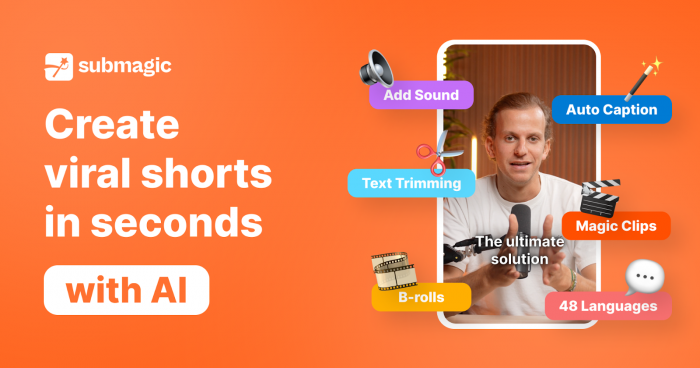
SubMagic focuses on something that matters enormously for Shorts but is often under‑optimised: captions, hooks, and on‑screen text. You bring your raw vertical video into SubMagic, and the tool automatically transcribes, times, and animates your subtitles. It adds colour, word‑by‑word emphasis, emojis, and motion so your captions feel like part of the storytelling, not just static text at the bottom.
Beyond basic transcription, SubMagic also suggests hooks and title ideas based on what you say in the video. This is particularly useful for creators who are comfortable talking on camera but struggle to distil their message into a short, punchy opening line that keeps people watching.
Benefits and Limitations
The major benefit of SubMagic is the amount of polish it adds without requiring deep editing skills. You can turn a plain talking‑head clip into a dynamic Short with kinetic captions and B‑roll overlays in a fraction of the time it would take in a traditional editor. For creators who care about retention and watch‑time but do not want to animate subtitles by hand, this is a big win.
However, SubMagic is not a full non‑linear editor. If you need complex multi‑layer timelines, colour grading, or advanced audio mixing, you will still need a separate editing tool. Also, if you use the default styles repeatedly, your videos can start to look similar to other creators using the same templates, so it is worth tweaking fonts, colours, and layouts to match your brand.
Pricing and Who Should Use It
SubMagic typically charges via subscription plans based on the number of minutes processed and access to premium templates and features. Creator‑oriented plans often start somewhere around 15–25 USD per month, with higher tiers for heavier users. It is best for Shorts creators who already have decent footage whether from their phone, camera, or repurposed tool and want to dramatically improve captions, hooks, and visual retention with minimal effort.
4. 2short.ai : YouTube‑Native Repurposing Engine
What 2short.ai Brings to the Table
2short.ai is designed specifically for turning YouTube videos into Shorts, with a workflow that feels tightly integrated with the platform. Instead of starting from a file on your computer, you often start from a YouTube URL or directly from your own channel. The AI analyses your video, identifies segments that can work as short, standalone clips, and presents them as potential Shorts.
One of the most useful aspects of 2short.ai is its focus on highlight selection that aligns with short‑form viewing behaviour. It looks for concise, self‑contained ideas, punchy moments, or strong statements that have a good chance of catching attention quickly. You can then refine the captions, adjust the clip boundaries, and export in vertical format.
Where It Works Best and Where It Doesn’t
2short.ai is strongest when you have a library of existing YouTube content and you want to systematically repurpose it. You can go through your back catalogue, find evergreen or high‑performing videos, and generate fresh Shorts without recording anything new. This makes it attractive both to creators and agencies who manage legacy content for clients.
The limitation is that 2short.ai is not meant to be a full editing environment. If your goal is to create complex, multi‑source Shorts from scratch or heavily stylised edits, this tool on its own will feel restrictive. Its sweet spot is turning existing videos into usable drafts that you can either publish directly or polish further in a separate editor.
Pricing and Best Fit
Pricing for 2short.ai usually follows a tiered subscription based on the number of minutes you can process monthly and the advanced options available. Entry‑level plans often fall in the rough range of 9–29 USD per month, with higher tiers for power users and agencies. It’s best suited for YouTubers with a backlog of long‑form videos, marketing teams handling brand channels, and agencies that want an efficient way to repurpose clients’ YouTube content into Shorts.
5. Descript : Edit Shorts by Editing Text
How Descript Helps Shorts Creators
Descript approaches video editing from a completely different angle: instead of only working with a traditional timeline, you primarily edit by changing text. You upload your footage, Descript automatically transcribes it, and your video is linked to that transcript. When you delete or rearrange words in the text, the underlying video edits itself accordingly. For YouTube Shorts, this makes it incredibly fast to cut out filler, tighten pacing, and shape a clear, punchy narrative without scrubbing endlessly through a timeline.
For creators who record long talking‑head videos, podcasts, or screen‑recorded tutorials, this workflow is a game changer. You can quickly remove “ums”, awkward pauses, repeated phrases, and tangents in a matter of minutes. Once the core message is trimmed down, you can then convert the best segments into vertical Shorts, add captions, and export them for YouTube.
Advantages and Trade‑offs
One of Descript’s biggest advantages is how accessible it makes editing for non‑editors. If you are comfortable editing a document, you are already halfway to editing a video in Descript. The automatic removal of filler words, easy cutting via text, and AI tools like overdub and audio clean‑up dramatically shorten the time between recording and publishing. This is especially powerful when you want to turn long recordings into multiple short, concise clips.
The trade‑off is that Descript is not a full replacement for high‑end, frame‑perfect editing software. While it has a timeline view and supports multi‑track editing, colour adjustments, and basic effects, complex visual projects or heavy motion graphics work are still better handled in a traditional NLE. Descript excels at dialogue‑driven content and fast turnaround, not at cinematic montage work.
Pricing and Ideal Use Cases
Descript typically offers a free tier with limited transcription minutes and export options, followed by paid plans that expand those limits and unlock advanced features. Creator‑focused plans often sit roughly in the 12–24 USD per month range when billed annually, with higher tiers available for teams and heavier usage. It’s best suited for educators, podcasters, talking‑head YouTubers, and agencies that frequently work with dialogue‑heavy content and want to spin that into Shorts quickly, using a text‑first editing workflow that feels more like writing than traditional video editing.
6. CapCut : Creator‑Friendly Editing with AI Assist
Why CapCut Still Matters for Shorts
CapCut is widely used by short‑form creators because it blends a friendly editing interface with an increasing number of AI tools. Available on both mobile and desktop, it lets you cut, trim, and arrange clips, but also helps with auto‑captions, background removal, and music syncing to beats.
For YouTube Shorts, its vertical‑first design is a major advantage. Many templates, effects, and filters are made for portrait content and feel natural on mobile screens. The app also integrates well into a creator’s daily routine, since you can shoot, edit, and export from the same device without switching between multiple platforms.
Strengths and Weak Spots
The strengths of CapCut lie in accessibility and cost. Many powerful features are available for free, which makes it attractive for beginners and budget‑conscious creators. AI‑assisted tools, like automatic captioning and smart cut, speed up repetitive tasks and allow you to focus on storytelling and pacing.
On the flip side, CapCut is not meant to replace high‑end professional editors when it comes to complex colour work, detailed audio mixing, or multi‑camera timelines. While it keeps improving, there are still limits compared with desktop NLEs designed for film or high‑end commercial work. For most Shorts creators, though, it hits the sweet spot between power and simplicity.
Pricing and Best Audience
CapCut operates primarily on a free model with optional paid add‑ons, premium effects, templates, and cloud storage. Some advanced or business‑oriented features may come under paid tiers, but many users can create Shorts entirely on the free version. It is best for solo creators, influencers, and small teams who want a low‑friction, low‑cost editor that covers shooting, editing, and exporting in one ecosystem.
7. VidIQ : Strategy and Analytics for Shorts
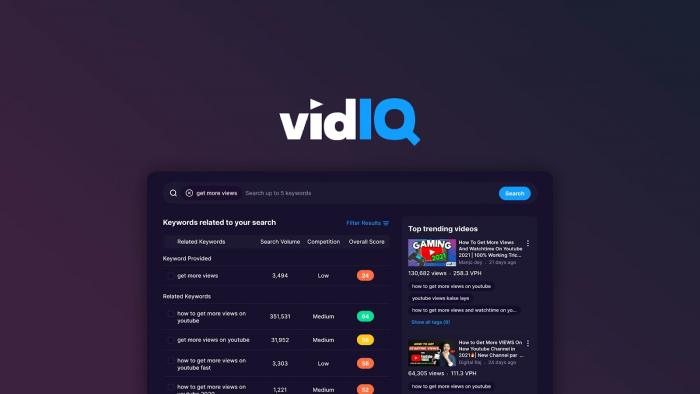
What VidIQ Does for Shorts Creators
VidIQ is not a video editor, but it plays a crucial role in making your Shorts successful. It focuses on research, optimisation, and analytics. With its AI features, you can generate topic ideas, discover trending keywords, and get suggestions for titles and descriptions tailored to your niche and channel history.
For Shorts, VidIQ helps at two critical stages. Before creation, it guides you toward topics and hooks that have proven demand, so you are not guessing what the audience wants. After publishing, it helps you see which Shorts are gaining traction, which hooks are working, and what you should double down on.
Benefits and Drawbacks
The main benefit is strategic clarity. Instead of randomly posting whatever comes to mind, you can build a content calendar around data‑backed ideas and search behaviour. This is particularly valuable when you want to grow a new channel or reposition an existing one.
The drawback is that VidIQ does not edit or create videos at all. It must be paired with the other tools in this article to complete your workflow. Some of the more advanced AI features and detailed analytics are also locked behind higher‑tier plans, so serious growth‑focused creators will likely need a paid subscription.
Pricing and Who Should Use It
VidIQ usually offers a free tier with basic metrics and a range of paid plans that unlock more advanced keyword research, AI ideas, and detailed analytics. Entry subscriptions often start around 10–20 USD per month, with higher tiers for power users and agencies. It is best for creators who treat Shorts as a strategic growth lever and want to use data to decide what to publish rather than relying solely on intuition.
How to Combine These Tools into a Shorts System
Rather than trying to use every tool separately, it’s more effective to think in terms of a stack. A practical sequence looks like this:
● You use VidIQ to research topics, angles, and keywords, so you know which ideas are worth turning into Shorts.
● If you are a faceless or script‑driven creator, you rely on InVideo AI to generate complete Shorts from prompts, then refine them in the Descript or CapCut.
● If your strength is long‑form content, you feed your videos into Opus Clip or 2short.ai, generate highlight drafts, and then polish the best ones with SubMagic and CapCut.
● Across all this, SubMagic becomes your go‑to tool for high‑impact captions and hooks that boost retention.
By combining a strategy layer, a creation layer, a repurposing layer, and a polishing layer, you build a repeatable system that can produce a steady flow of Shorts with far less manual effort.
Verdict: Which AI Tool Should You Start With?
If you are just starting out and want to publish faceless Shorts quickly, InVideo AI is a very strong first choice, especially when paired with SubMagic for captions and hooks. Creators who already have long‑form content should prioritise Opus Clip or 2short.ai to get maximum value from each upload and then add a polishing tool such as CapCut or the Descript.
For data‑driven creators who care about long‑term growth, VidIQ is almost non‑negotiable. It doesn’t create videos, but it ensures you focus on the right topics and understand which Shorts are actually driving results. Agencies and power users often end up with a full stack: VidIQ for strategy, Opus Clip and 2short.ai for repurposing, InVideo or CapCut for editing, and SubMagic for retention‑focused captions.
Used together, these tools turn YouTube Shorts from a creative grind into a scalable system. You still bring the ideas, opinions, and personality but AI handles the heavy lifting so you can publish more, test more, and grow faster.
Post Comments
Be the first to post comment!
Related Articles