Table of Content
- Chapter 1: The Tab That Refused to Close
- Chapter 2: Four Jobs, One Workspace
- Chapter 3: Walking Through a Real Day With Img2Go
- Chapter 4: The Feel of the Interface
- Chapter 5: The Invisible Stuff- Security, Privacy, Reliability
- Chapter 6: The Money Question - Is It Worth Paying For?
- Chapter 7: Where It Fits in the Bigger Ecosystem
- Chapter 8: The Parts I Love and hold back About Img2Go
- Chapter 9 : The Honest Scorecard in My Head
- Final Chapter: Why That Tab Is Still Pinned
Let's Imagine a scenario that you wake up one morning and quietly realize that half your workday is spent wrestling with images. Not designing masterpieces, just resizing, compressing, converting, cleaning rough backgrounds, exporting “one more version” for a platform that wants a slightly different format. That was the backdrop for my relationship with Img2Go: not a dramatic love story, but a slow, practical alliance built in a browser tab.
Chapter 1: The Tab That Refused to Close
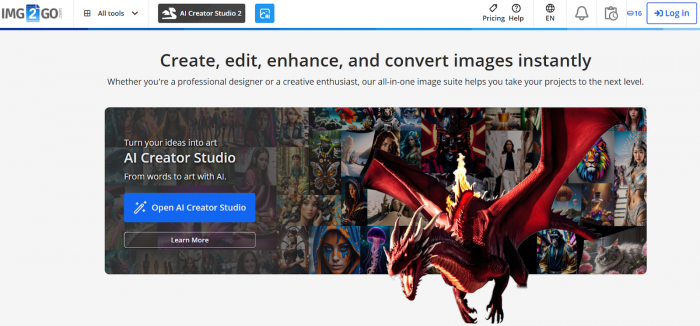
Img2Go entered my workflow the way most web tools do through a quick Google search for “resize image online, no install.” I wasn’t looking for a platform. I wanted a one‑off solution.
I dragged an oversized image into the browser, clicked a clearly labeled resize tool, set my dimensions, hit “start,” and downloaded the result. No account, no tutorial, no configuration. That should have been the end.
But the next time I needed to compress a hero image for a blog, guess which site I instinctively reopened? The same one. Then a PDF full of screenshots landed in my inbox, and I needed individual images pulled out. Back I went. Then a client wanted a quick PNG‑to‑JPG batch. Same story.
At some point, I stopped “visiting” Img2Go and started pinning it.
Chapter 2: Four Jobs, One Workspace
Over time, I realized that Img2Go wasn’t just solving one type of problem. It was subtly handling four distinct roles for me: editor, optimizer, converter, and AI assistant.
The Editor: Quick Hands, Not a Surgeon
When I say “editing” with Img2Go, I don’t mean twelve layers and complex masks. I mean the kind of everyday fixes that keep images from looking sloppy:
● Cropping images to play nicely with blog layouts and social aspect ratios.
● Rotating that one sideways photo that refuses to behave.
● Adding simple text, logos, or watermarks without firing up heavyweight software.
● Tuning brightness and contrast just enough to make a dull shot usable.
It feels less like a studio and more like a small workbench: basic, well‑used tools within arm’s reach. No one is painting a digital Mona Lisa here—but no one’s wasting time clicking through menus either.
The Optimizer: Chasing the Perfect File Size
The second role Img2Go plays for me is performance doctor. Modern content work is obsessed with speed, and heavy images are silent killers.
My typical dance goes like this:
● Resize large photos from cameras or stock libraries down to sane dimensions.
● Run compression to shave off kilobytes (sometimes megabytes) without wrecking visual quality.
● Use AI upscaling on the rare low‑res gem I don’t want to abandon.
For someone running websites, sending newsletters, or building landing pages, that ability to rapidly tune size versus clarity is priceless. I don’t need artistic genius here, I need discipline. Img2Go is disciplined.
The Converter: Universal Plug Adapter for Images
Then there’s the file format chaos. Different platforms, tools, and clients ask for different things: JPG, PNG, PDF, sometimes even vector formats.
Img2Go slowly became my plug adapter:
● PNG to JPG when I need lighter assets.
● JPG to PNG when I require transparency.
● Images to PDF when I want simple “visual documents.”
● PDFs back to images when someone insists on sending screenshots wrapped in a multi‑page file.
Instead of visiting a new site for each tiny task, I learned that almost every “just convert this” problem could be solved from that one pinned tab.
The AI Assistant: Imperfect, but Surprisingly Helpful
Finally, there’s the AI side, probably the most interesting, and the most temperamental.
I’ve used Img2Go’s AI for:
● Background removal on product shots, thumbnails, and profile pictures.
● Upscaling older or small images so they don’t look washed out or pixelated.
● Cleaning little distractions—random objects, text, or clutter—from otherwise good photos.
● Generating rough visuals from text prompts when I need a quick “idea image.”
It’s not an art god. It’s more like a smart assistant with occasional mood swings.
Sometimes the results are impressive: the background removal can be extremely clean, making images look professionally edited, and the upscaling feature can revive low-quality images that seemed unusable. However, there are also moments when the AI misinterprets prompts and produces unusual or inaccurate results, and complex details like hair or fine edges can confuse the background remover, leaving halos or rough outlines.
So I treat it like a speed boost, not an oracle: when it nails it, I’m grateful; when it doesn’t, I adjust expectations and move on.
Chapter 3: Walking Through a Real Day With Img2Go
To understand how Img2Go actually fits into my life, it’s easier to narrate a semi‑typical day than list features.
Morning: Blog and Newsletter Assets
I start with:
● A folder of raw images from stock sites or a photographer.
● A content calendar that doesn’t care how many versions I need to produce.
In practice, I:
● Drop a hero image into Img2Go, crop for desktop header, then again for mobile.
● Resize in a couple of standard widths I like for body images.
● Compress them all to keep page load times snappy.
When a partner wants images in PDF format for a quick review, I convert a batch to PDF without leaving the site.
Afternoon: E‑commerce or Product Work
Later in the day, I might be working on a product or landing page.
My Img2Go tasks often include removing backgrounds from product photos so they can be placed on clean white or branded backgrounds, upscaling low-quality supplier images to make them look more professional, and converting images into the formats required by different marketplaces or content management systems.
I don’t think about which tool does what anymore. I just accept that somewhere between “upload” and “publish,” Img2Go will be involved.
Evening: Personal Projects and Old Photos
On slower days, I’ve fed old family photos through:
● AI upscaling to sharpen them just enough.
● Colorization to give black‑and‑white memories a bit of life.
The results won’t win restoration awards, but seeing an old faded scene revived—even imperfectly is satisfying. For personal use, it’s more than enough.
Chapter 4: The Feel of the Interface
If you’ve ever opened a professional editing suite and felt your brain tighten, Img2Go is the opposite experience.
It feels like this:
● A clean page filled with tools labeled by task, not jargon.
● A drag‑and‑drop zone that politely accepts whatever file I throw at it.
● Focused pages for each operation with only the controls that matter right now.
I never had to ask, “Where is the thing that resizes images?” It says “Resize Image.” Same for compression, conversion, background removal, and so on.
There are moments where I wish it would be slightly more integrated—like having one multi‑step flow that resizes, compresses, and maybe adds a watermark in a single guided sequence. Instead, I hop between tools. It’s not painful, but I can see room for refinement.
Still, for something I can open on any machine in seconds, the interface does its job: it gets out of my way.
Chapter 5: The Invisible Stuff- Security, Privacy, Reliability
This is the chapter a lot of quick reviews skip, but as a user, I think about it more than I admit.
Security and Privacy: How Comfortable Do I Feel Uploading Files?
Every cloud tool asks for a kind of quiet trust: you upload your content, and you hope it’s treated responsibly.
With Img2Go, my comfort level lands here:
● I’m completely fine uploading everyday images—blog visuals, social graphics, marketing assets, product shots.
● I’m more cautious with genuinely sensitive material, just as I am with any online editor or converter. For things like confidential documents or private IDs, I prefer offline tools unless I’ve deeply vetted the platform’s policies.
The platform behaves like a standard, established online editor: I upload, process, and download. The workflow feels normal and predictable, not shady or intrusive. As with any such tool, the responsible approach is to match the sensitivity of your files to your tolerance for cloud processing.
Reliability: Does It Actually Show Up When I Need It?
Reliability is less about uptime statistics and more about whether I can trust a tool in crunch time.
In my case:
● The core features like resizing, compression, conversion have been consistently stable. They work when I need them, and they work quickly.
● AI features are more variable, but that’s a general truth of AI, not a quirk of this particular product.
● Big files and complex tasks sometimes take longer or need a second run, but that’s the price of doing work in the browser, over the network.
Most importantly, I’ve used Img2Go for client deliverables and public content without being nervous that it might collapse on me. That’s probably the highest compliment I can give a tool like this: I rely on it quietly, and I don’t worry much about it.
Chapter 6: The Money Question - Is It Worth Paying For?
Img2Go started free for me. I pushed it hard on the free tier before I even considered paying. The nice part is that it lets you do that. You don’t get locked out after one file. You don’t have to subscribe blind.
When I crossed the line into “this is now part of my actual job,” I looked at the upgrade options and found a structure that made sense in real life:
● Stay free for light, occasional use.
● Buy pay‑as‑you‑go credits when I have a temporary spike in work.
● Move to a subscription when this becomes a daily utility.
What I’m effectively paying for is not just “more edits,” but:
● Higher limits, faster processing in some cases, and access to more powerful tools.
● A central place where multiple needs are handled: edits, conversions, optimization, AI experiments.
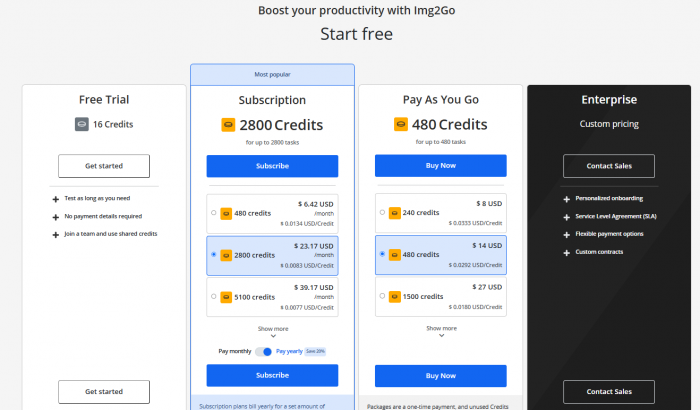
Compared to the cost of heavy desktop suites, Img2Go occupies a gentler tier. It’s easier to justify, especially for freelancers, small teams, and students who don’t want another large recurring subscription unless it’s truly necessary.
Chapter 7: Where It Fits in the Bigger Ecosystem
In the world of image tools, Img2Go is not the loudest or most glamorous player. It’s not trying to out‑Adobe Adobe, and it’s not a pure AI unicorn either.
Here’s how I mentally place it:
● It beats many single‑purpose tools simply by consolidating multiple jobs into one place.
● It doesn’t compete on deep, pixel‑perfect control with pro‑grade editors, and that’s fine.
● It offers enough AI power to be genuinely helpful, without demanding that I become an AI specialist to use it.
I still keep other tools around:
● A heavyweight editor for complex, layered design projects.
● Specialized AI tools for cutting‑edge generative work when I care deeply about style and precision.
But Img2Go is the utility knife, the one I grab by default, the one that does 70–80% of the routine work. It doesn’t need to be the star of the show; it just needs to keep being useful.
Chapter 8: The Parts I Love and hold back About Img2Go
Img2Go’s biggest strength is convenience. Because everything runs in the browser, I don’t have to install software or worry about licenses. I can edit images from any device with an internet connection, which makes it very flexible.
It also works as an all-in-one toolbox. I can resize, convert, crop, compress, remove backgrounds, upscale images, and even generate visuals in one place. That means fewer tools to juggle and a smoother workflow.
Another big advantage is the very low learning curve. The tools are clearly labeled and focused, so you can start using them immediately—even if you’re not very technical.
The AI features are also genuinely helpful. Tasks like background removal, upscaling, and basic cleanup can be done in seconds, turning what used to be tedious edits into quick fixes.
Finally, the pricing model is flexible. You can start free and later choose credits or a subscription depending on how often you use it.
The Parts That Hold It Back (Cons)
The biggest downside is AI inconsistency. Sometimes the results are excellent, but other times backgrounds look rough or generated images miss the mark.
Background removal also struggles with complex details like hair, transparency, or messy scenes. In those cases, results may need extra touch-ups.
Because it’s a web-based tool, it also depends on a stable internet connection, which can be frustrating on slow networks.
Img2Go is powerful for everyday edits, but it’s not a full professional editor. Advanced workflows like detailed masking, color grading, or heavy retouching still require desktop software.
Lastly, like any cloud service, there’s a privacy consideration. For highly sensitive images, offline tools may still be the safer option.
Chapter 9 : The Honest Scorecard in My Head
If I had to translate my experience into something like a mental rating, it would look less like stars and more like this:
● Convenience: Extremely high. Browser‑based, no install, works wherever I am.
● Feature coverage: Broad enough for day‑to‑day tasks - editing, conversion, optimization, basic AI.
● Depth of control: Moderate. Great for everyday use, limited for advanced professionals.
● AI quality: Useful but uneven, excellent for some tasks (background removal, upscaling), unpredictable for others (complex generations).
● Security comfort: Good for general content; for highly sensitive material, I apply the same caution I would with any cloud tool.
● Value for money: Strong, especially when considering how many separate tools it replaces for me.
Final Chapter: Why That Tab Is Still Pinned
After spending real time with Img2Go, I don’t think of it as “an image site” anymore. I think of it as an infrastructure part of the quiet plumbing behind my content work.
It doesn’t impress me every day, but it doesn’t need to. What matters is that it’s reliable when I need it whether I’m fixing a poorly sized image right before publishing, converting mismatched formats a client sent, experimenting with quick AI enhancements, or working from a different device where I just need a simple tool that runs in the browser.
If you live in a world where images are constant but time is not, Img2Go is the kind of tool that earns its keep quietly. You won’t remember the first time you used it but you will notice the day the tab isn’t there, because suddenly, everything small takes longer again.
Post Comments
Be the first to post comment!
Related Articles