Table of Content
- What WeVideo Actually Is (Beyond “Online Video Editor”)
- Everyday Editing Experience: How It Feels to Use
- Cloud, Collaboration, and Interactive Learning
- Pricing and Plans: How It’s Structured
- Safety, Privacy, and Legitimacy
- What Real Users Say: Pros and Cons
- Who Thrives in WeVideo (And Who Probably Won’t)
- Final Verdict: How to Think About WeVideo
WeVideo is one of those tools that only makes full sense once you stop treating it as “Premiere in the browser” and start judging it on its real job: letting normal people, students, and small teams create and share decent videos from almost any device, without begging IT for installs or training.
What WeVideo Actually Is (Beyond “Online Video Editor”)
WeVideo is a cloud‑based video creation platform that runs mainly in the browser, with support for Chromebooks, desktop browsers, and mobile devices. It combines a timeline video editor, stock media library, templates, and interactive video features so that teachers, trainers, marketers, and everyday creators can make shareable videos without installing heavy software.
The company positions WeVideo “for everyone, from educators to trainers to content creators,” with dedicated experiences and landing pages for education, business, and creators. Under the hood, it layers serious privacy and security work—SOC 2 Type II, FERPA/COPPA/GDPR compliance on top of the editing features, which is a big part of why schools and institutions trust it.
Everyday Editing Experience: How It Feels to Use
Setup and interface
You access WeVideo via a web browser; sign‑up and first launch feel closer to logging into a SaaS app than installing traditional editing software. On Chromebooks, you can use it directly in Chrome or via the Android app, but the browser editor is widely considered the “full” experience.
The interface uses the familiar layout: media library at the top, preview window, and multi‑track timeline at the bottom for video, audio, and overlays. Users on review platforms consistently highlight that they were able to figure out trimming, splitting, and layering within a short time, even if they had never edited video before.
Editing tools and workflow
WeVideo supports multi‑track editing, drag‑and‑drop media, trims, splits, and basic transformations to build sequences quickly. You can add animated text, motion titles, overlays, and transitions, which is enough to create intros, explainers, and simple branded content without touching external design tools.
Features such as:
● Green screen (chroma key)
● Screen recording and webcam capture
● Voice‑over recording
● Basic audio mixing
are integrated directly into the editor, which is particularly useful for teachers recording lessons or marketers recording software demos. The platform is more opinionated than open‑ended pro suites, but that’s exactly what makes it approachable.
Performance and technical ceilings
Because everything runs through the browser and WeVideo’s cloud, performance depends on both your device and network. For 720p and 1080p projects with modest complexity, users typically describe performance as smooth and reliable. When timelines get heavier, multiple layers, lots of effects, or 4K footage preview performance can lag and become less responsive, which several reviewers flag as a real limitation for advanced work.
Exporting is handled on WeVideo’s servers, which can be an advantage if your local hardware is weak. Exports to HD and 4K (where supported by your plan) generally complete in a reasonable timeframe, though power users used to fine‑tuned codec options may miss granular control.
Cloud, Collaboration, and Interactive Learning
Cloud storage and device independence
All projects and media are stored in the cloud by default. This means:
● Autosave reduces the risk of losing work due to local crashes.
● You can start on one machine and finish on another, as long as you can log in.
● In shared environments (labs, Chromebook carts, hot‑desking offices), no one depends on a specific device.
For schools with shared Chromebooks or for teams where people work across home and office, this device independence is a major practical advantage.
Collaboration and team workflows
On business and higher plans, WeVideo includes collaborative features such as shared projects, multi‑seat licenses, user roles, and shared media libraries. Marketing and learning teams can define brand elements (logos, colors, fonts where supported) and reusable templates so that colleagues can assemble videos without reinventing the wheel each time.
This collaboration layer is also present in education plans, where teachers and students can share projects within a managed school environment, often tied to institutional Google Workspace accounts. That makes it easier to manage who can see what, and to keep student work inside the school’s ecosystem.
Interactive lessons and analytics
A key differentiator for WeVideo in classrooms and training is its support for interactive video experiences that track engagement and performance. Teachers and instructional designers can embed questions, quizzes, and checkpoints into videos, then view analytics to see how learners interact with the content.
This interactive layer helps move video away from passive consumption and towards active learning, which is why you see testimonials from educators talking about students “being part of the story” and engaging more deeply with lessons.
Pricing and Plans: How It’s Structured
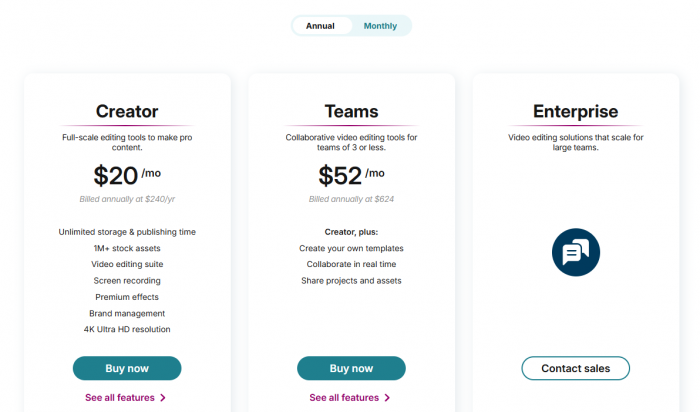
WeVideo uses a freemium + tiered subscription model with personal, professional, business, and education‑specific plans.
● Free / trial: Limited export time, lower resolution, smaller storage, and watermark—designed for testing and very light use.
● Individual creator tiers (e.g., Power, Unlimited): Unlock HD exports, more storage, and higher publish limits, typically in the single‑digit to low‑teens USD per month range (with annual billing).
● Professional / Business: Add 4K export, unlimited stock, brand management, advanced templates, multiple seats, and collaboration tools at higher monthly fees.
● Education plans: Classroom, school, and district packages that scale per student/teacher, with education‑specific features and legal compliance baked in.
Safety, Privacy, and Legitimacy
Compliance and security posture
WeVideo isn’t just “school‑friendly” in marketing copy; its security page documents a serious compliance posture. It follows the NIST Cybersecurity Framework, maintains SOC 2 Type II attestation, and lists compliance with FERPA, COPPA, New York Education Law 2‑D, GDPR, CCPA, and PCI DSS.
● FERPA/COPPA: WeVideo for Schools plans are explicitly described as COPPA‑ and FERPA‑compliant, with structures designed for school‑managed accounts and student privacy.
● GDPR/CCPA: A dedicated Data Processing Addendum (DPA) covers European data protection laws and clarifies roles (WeVideo as processor, customer as controller) and security obligations.
● SOC 2 Type II: This attestation indicates that their controls for security, availability, and confidentiality have been independently audited over time.
For districts, WeVideo also participates in state‑level student data privacy agreements, where obligations around student PII, breach notifications, and authorized use are spelled out in detail.
Privacy policy and data handling
WeVideo’s privacy policy outlines categories of personal information collected, purposes for use, and user rights (including access and deletion for applicable jurisdictions). It states that WeVideo offers tools to control personal data, including the ability to consent or withdraw consent, and describes how student data is handled under WeVideo for Schools plans.
In practice, this means:
● Student accounts in education plans are created and managed by schools, not directly by children under 13.
● Use of data is restricted to providing the service and related purposes, with contractual limitations baked into DPAs with institutions.
Independent evaluators like Common Sense’s privacy report note that WeVideo has some strong student‑privacy signals, though as with many tools, not every fine detail is evaluated publicly.
Legitimacy and reputation
WeVideo has been operating for years, with headquarters in Mountain View, California and additional teams in Romania, and is widely adopted in K‑12 and higher‑ed environments. Major districts, universities, and corporate clients have public case studies and testimonials citing WeVideo’s role in student engagement and scalable training.
On the consumer and SMB side, WeVideo scores around 4.5–4.7 out of 5 across major software directories for overall satisfaction, ease of use, and value. Trustpilot, Capterra, GetApp, and G2 all show mostly positive sentiment, with criticisms focused on feature depth and occasional performance issues rather than on legitimacy or safety concerns.
What Real Users Say: Pros and Cons
Strengths highlighted by users
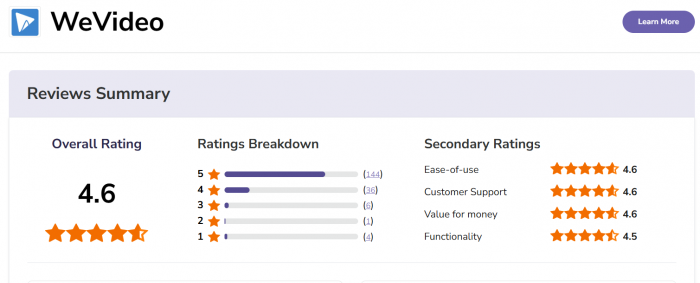
Across review platforms, WeVideo scores strongly on ease of use and perceived value:
● On Software Advice, WeVideo earns around 4.6/5 for ease-of-use, value for money, and customer support, and 4.5/5 for functionality
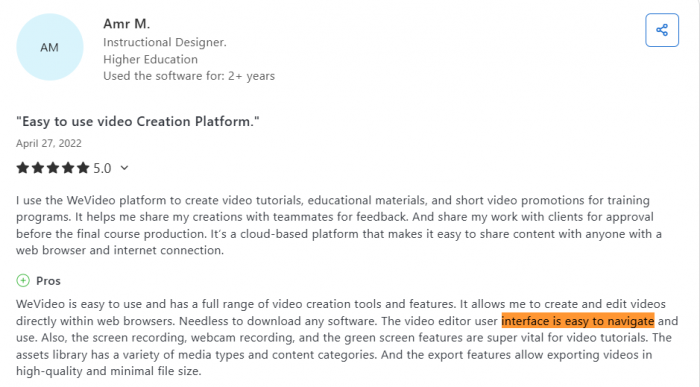
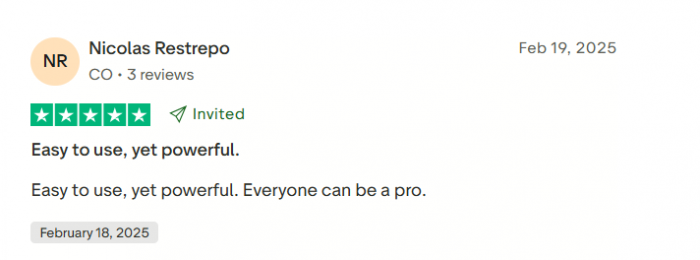
● Users frequently praise its intuitive interface, generous publish limits on upper tiers, and the fact that “everyone can be a pro” with templates, animated text, and motion titles.
● Many reviewers highlight how easy it is to get started on a Chromebook or low-power device and edit from anywhere without installing any program.
One user comment captures the general sentiment: editing on WeVideo is “easy to use, yet powerful,” with enough options to create compelling videos but not so many that non‑experts get lost.
Common complaints and limitations
However, WeVideo is not without its critics:
● Some users feel that design options (fonts, overlays, and visual customization) lag behind modern competitors, asking for more fonts and more flexible overlays.
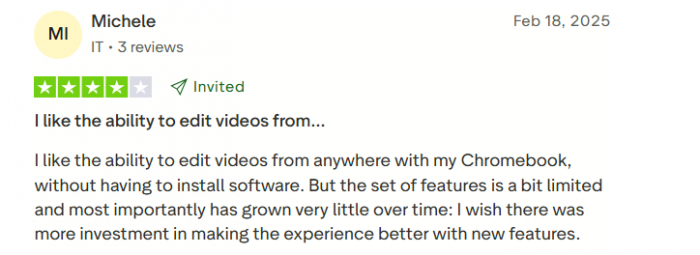
● A recurring theme is that feature growth can feel slow; long‑time users wish for more investment in advanced features and new capabilities.
● There are specific functional gaps, such as missing or limited crop/rotate options in certain workflows and constraints that become obvious when doing more complex compositing.
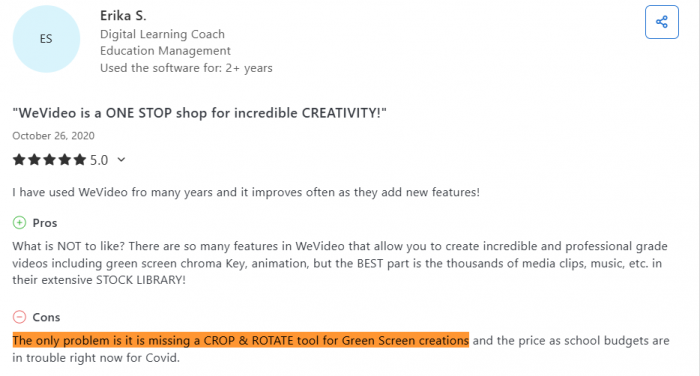
● Budget‑pressed schools note that licenses can still be a strain on school budgets, even if the product fits their workflow well.
In short, users love the ease of use and accessibility but notice the boundaries once they try to push WeVideo into true pro‑editor territory.
Who Thrives in WeVideo (And Who Probably Won’t)
People and institutions that tend to love it
1. Chromebook schools and districts: WeVideo takes a fleet of very modest laptops and turns them into a media lab. It respects student data, plugs into existing Google accounts, and passes enough privacy and security checks to actually make it through procurement.
2. Teachers and instructional designers: They can record screens, add webcam commentary, sprinkle in questions, and watch analytics not just to see if students watched, but how they interacted. Video stops being a one‑way broadcast and becomes part of the assessment toolkit.
3. Small business and nonprofit teams: They don’t want to become editors; they want onboarding videos, product explainers, and social content that doesn’t look like it was shot in a hurry on someone’s phone. Shared templates, brand assets, and cloud projects make that realistic.
4. Individual creators who value ease over perfection: Freelancers, tutors, course creators, and new YouTubers who are willing to trade a bit of control for a lot of simplicity tend to be pleasantly surprised: they spend more time scripting, recording, and publishing and less time fighting software.
People who will bounce off it
1. Professional editors and filmmakers: If you already live in Premiere, Resolve, or Final Cut, WeVideo feels like editing with the training wheels welded on. It can be fine as a quick‑turnaround option or a collaborative scratch pad, but it won’t replace your main NLE.
2. Security environments that can’t touch SaaS: Air‑gapped studios, agencies working with extremely sensitive footage, or organizations with strict on‑premise requirements will struggle with any cloud editor, no matter how robust its security certifications are.
3. Trend‑chasing social video specialists : Creators who live on the bleeding edge of effects, memes, and platform‑specific gimmicks may find WeVideo a bit conservative for high‑velocity social campaigns.
Final Verdict: How to Think About WeVideo
WeVideo is best understood not as “cloud Premiere,” but as infrastructure for making everyday video and interactive lessons possible for people who are not professional editors. It shines when the job is to let teachers, students, small teams, and non‑technical staff express ideas in video form quickly, safely, and from any device especially in Chromebook and browser‑first environments.
If you are a school or district looking to turn devices into creative tools, a learning team trying to scale training, or a small business that needs consistent, decent‑looking videos without building a production department, WeVideo is a strong, legitimate, and well‑rounded choice. If you live and breathe professional editing and demand full creative control and offline performance, it’s more likely to serve as a useful secondary tool than your primary editor.
Post Comments
Be the first to post comment!
Related Articles