Reels still own Instagram discovery in 2026. The accounts pulling real reach are not the ones with the fanciest cameras. They are the ones that post good short video consistently, week after week. That is the hard part. Filming, scripting, cutting, captioning and resizing a single Reel by hand can swallow an entire afternoon, while the algorithm rewards volume and watch time, not effort.
AI fixes the time problem, but here is the catch most lists skip: there is no single best AI tool for Reels, because the leading tools do four genuinely different jobs. One generates a video from a sentence. One edits the footage you already shot. One slices a long video into clips. One narrates faceless videos in a human sounding voice. Pick the wrong category and you will be disappointed no matter how polished the tool is. So this guide is built around the job, not a leaderboard. Find your job, meet the tool that owns it.
| THE 60-SECOND VERDICT | |
|---|---|
| CapCut | The complete free editor. If you shoot your own clips, start here and rarely look anywhere else. |
| InVideo AI | Type a prompt, get a finished Reel. The closest thing to type and publish, now with Sora 2 and VEO 3.1 built in. |
| OpusClip | Turns one long video into ten short clips in minutes. Built for podcasters, streamers and webinar hosts. |
| Fliki | Faceless videos with strikingly natural AI voiceovers in 80 plus languages. Great for educational content. |
Start with the job, not the tool
Before you weigh prices or features, answer one question: where does your content start? The map below places the four tools across two axes. Left to right is whether a tool works with footage you already have or builds video from text. Bottom to top is how hands-on the editing gets. Each tool sits firmly in its own corner, which is exactly why a head to head ranking can mislead. They are not really chasing the same job.
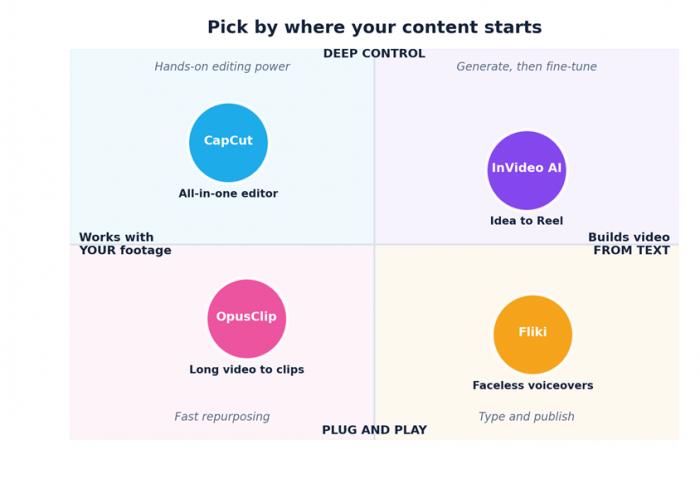
If you film yourself, you live on the left. If you want content without a camera, you live on the right. CapCut and OpusClip both work with existing footage, but CapCut shapes a single clip while OpusClip harvests many clips from one long recording. InVideo AI and Fliki both generate from text, but InVideo leans cinematic and broad while Fliki leans voice-first and faceless.
The four contenders at a glance
The quick scan before the detail. Prices are the lowest paid tier, billed monthly; an asterisk marks tools that are noticeably cheaper on annual billing.
| Tool | Best for | Starts at | Free tier | Standout |
|---|---|---|---|---|
| CapCut | Editing your own footage | $0 / $9.99 | Full editor, no watermark | Best free toolkit |
| InVideo AI | Making video from a prompt | $28* | 10 min/wk, watermark | Sora 2 + VEO 3.1 |
| OpusClip | Long video to short clips | $15 | 60 min/mo, watermark | Virality scoring AI |
| Fliki | Faceless voiceover video | $28* | 5 min/mo, watermark | 2,000+ AI voices |
Four tools, four jobs
1. CapCut: the all-in-one editor
Best for creators who shoot their own footage
What it is. CapCut is the Swiss Army knife of short video. It began as a mobile editor and has grown into a full creative suite across phone, desktop and web, with a conversational AI workflow that can take a rough idea to a publish-ready Reel. For most people who film anything themselves, it is the natural home base.
Where it shines:
• The most generous free tier of any tool here. The full editing timeline, 1080p export, auto-captions, templates and basic AI effects cost nothing, with no locked tracks or upgrade walls inside the editing flow.
• A deep toolkit once you upgrade: 4K and HDR export, background removal, motion tracking, vocal isolation, voice cloning, AI avatars and text-to-video all live under one roof.
• It works beautifully as a hub, pulling in clips, audio and stock from elsewhere and stitching everything into the final cut.
• Auto-captions and beat-synced cuts are fast and reliable, which matters because captions drive watch time.
Pricing. Free forever for the core editor. Standard is about $9.99 a month and mainly removes watermarks. Pro is about $19.99 a month (roughly $15 with annual billing) and unlocks 4K plus the full AI toolkit and 1TB of cloud storage. A Team plan runs about $24.99 per user.
Watch out for. The headline AI features sit behind Pro, and free AI usage is capped (for example, a handful of AI auto-edits per month). CapCut is an editor first, so it will not conjure a video from nothing the way a pure generator does.
Best for: all-rounders and mobile-first creators who want one tool to edit, caption and polish footage they shot themselves.
2. InVideo AI: idea to Reel in one prompt
Best for creating videos without filming or editing

What it is. InVideo AI is the closest tool to type and publish. You describe the video you want in plain language and it writes a script, picks stock footage, records an AI voiceover, adds music and captions, and assembles the whole thing. In 2026 it bundles OpenAI's Sora 2 and Google's VEO 3.1 directly into the pipeline, so cinematic AI-generated shots can sit alongside stock clips.
Where it shines:
• One prompt produces a finished, structured video, handling hundreds of small editing decisions for you. For non-editors, that is the entire appeal.
• The bundled Sora 2 and VEO 3.1 access is a genuine standout. Buying both separately would cost far more than the subscription.
• Voice cloning and output in more than 50 languages make it strong for scaling a personal brand or going multilingual.
• You refine the result with text commands instead of a timeline, which keeps the barrier low.
Pricing. A limited free plan gives roughly 10 minutes of generation a week with a watermark. Plus starts around $28 a month (about $17 billed annually), Max around $48 a month, and a Generative tier around $100 a month for heavier AI-video use. Credits are spent whether an output is good or not.
Watch out for. The AI scripts can feel formulaic, roughly one in four editing commands needs a retry, and renders take 20 to 30 minutes. This is assembly and generation, not a precision editor.
Best for: non-editors, marketers and faceless creators who want a polished Reel from a sentence and value breadth over fine control.
3. OpusClip: long video into viral clips
Best for podcasters, streamers and long-form creators

What it is. OpusClip does one thing extremely well. It takes a long video (a podcast, webinar, interview or stream) and automatically finds the most clip-worthy moments, reframes them vertically, adds captions and scores each clip for viral potential. A 60-minute recording becomes around ten ready-to-post shorts in under ten minutes.
Where it shines:
• Its ClipAnything model reads visual, audio and sentiment cues to pick moments, then auto-reframes to 9:16 with sharp, accurate captions in 25 plus languages.
• A virality score helps you prioritise which clips to post first, and a built-in scheduler can publish across platforms.
• It pulls source video straight from YouTube, Zoom, Twitch and more, and users report around 85 percent time savings versus manual clipping.
• Trusted at scale, with enterprise customers including NVIDIA, Visa, GitHub and iHeartMedia.
Pricing. Free gives 60 processing minutes a month, but exports carry a watermark and clips vanish after three days. Starter is $15 a month (150 minutes, no watermark). Pro is $29 a month (300 minutes, 1080p, all aspect ratios, AI b-roll and the scheduler).
Watch out for. It is purely a repurposing tool. With no long-form source footage it has nothing to work with. Cancel your plan and projects are deleted within three days.
Best for: anyone who already produces long videos and wants a steady stream of short clips without rewatching every minute.
4. Fliki: faceless videos with a human voice
Best for educational, voiceover and blog-to-video content
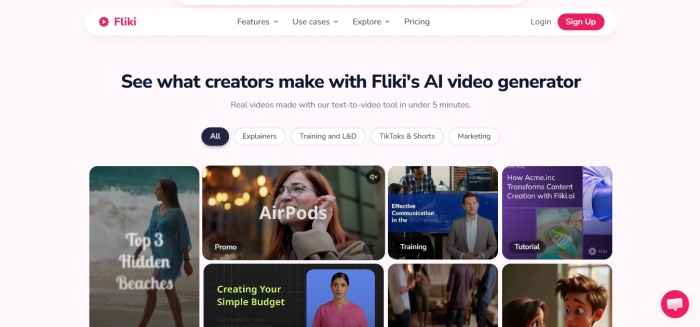
What it is. Fliki is a text-to-video and text-to-speech platform built around one of the most natural-sounding AI voice libraries available. You paste a script or even a blog URL, and it builds a scene-by-scene video with stock visuals, captions and a lifelike voiceover, usually in under two minutes.
Where it shines:
• Voice is the headline. More than 2,000 voices across 80 plus languages and 100 plus dialects, with quality that is genuinely hard to tell from a real narrator.
• Voice cloning on the higher tier lets you narrate every video in your own voice for consistent branding.
• A simple scene-based flow, where each paragraph becomes a scene, makes it approachable for people with zero editing experience.
• Blog-to-video and slide-to-video inputs make it a fast way to repurpose written content for Reels.
Pricing. Free covers 5 minutes a month at 720p with a watermark and no commercial use. Standard is about $28 a month (around $21 annually) for 120 minutes, 1080p and the full voice library. Premium is about $88 a month (around $66 annually) and adds voice cloning, API access and commercial rights.
Watch out for. Fliki uses stock footage only, so there are no Sora-style AI-generated visuals. Credits are spent while editing and previewing, not just on final export, which surprises some users.
Best for: educators, faceless niche channels and content marketers who want professional narration and a script-to-video workflow.
Head to head
The price picture
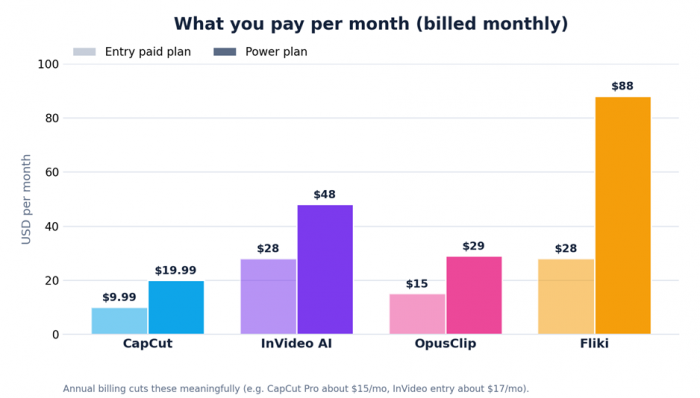
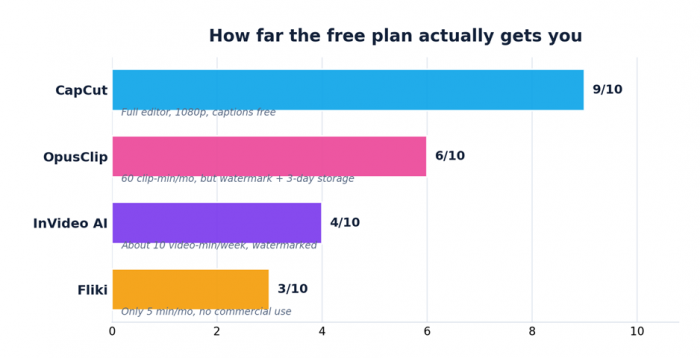
On raw monthly cost, CapCut is the clear value leader and Fliki's Premium tier is the priciest of the group. But monthly list price hides two things: annual billing trims most of these by 20 to 50 percent, and the tools are not interchangeable. The right question is value for your job, not the lowest sticker.
How generous is free, really?
Every tool has a free plan, but they differ wildly in practice. CapCut's free tier is a genuinely usable product. The generator tools treat free as a demo: watermarks, tiny monthly caps and, in Fliki's case, no commercial use at all. If a free workflow matters, CapCut is in a league of its own, with OpusClip a distant second for testing clip quality.
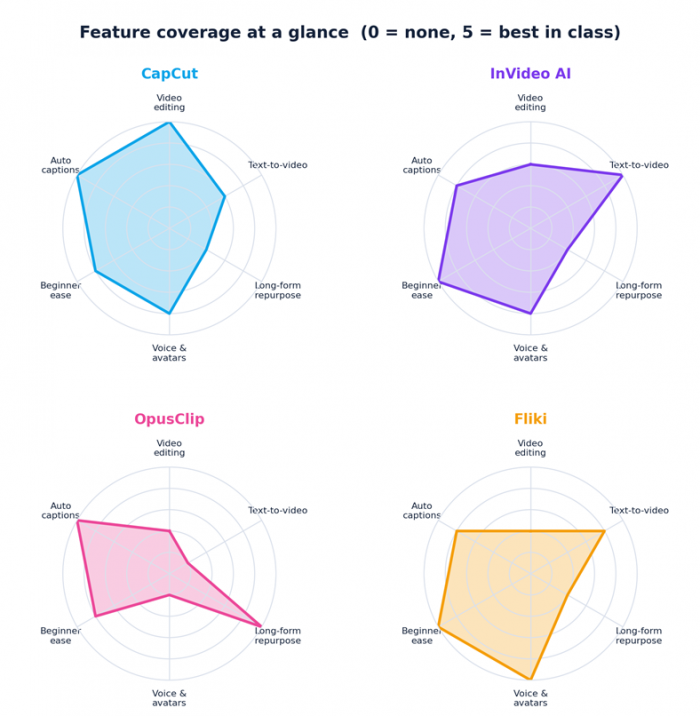
Where each tool's strength sits
Scored across six dimensions, the shapes tell the story at a glance. CapCut is well-rounded with a peak in editing and captions. InVideo stretches toward generation and ease. OpusClip is a spike on repurposing. Fliki dominates voice. Notice how little they overlap, which is the whole point of choosing by job.
The full comparison
Everything side by side. Prices are monthly list rates verified in June 2026 and vary by region, platform and billing cycle.
| Feature | CapCut | InVideo AI | OpusClip | Fliki |
|---|---|---|---|---|
| Primary job | Edit and assemble clips | Generate from a prompt | Repurpose long video | Faceless voiceovers |
| Best for | All-rounders, mobile editors | Non-editors, fast output | Podcasters, streamers | Educators, blog to video |
| Free plan | Full editor, 1080p | About 10 min/wk, watermark | 60 min/mo, watermark | 5 min/mo, watermark |
| Entry paid (monthly) | $9.99 Standard | $28 Plus | $15 Starter | $28 Standard |
| Power plan (monthly) | $19.99 Pro | $48 Max | $29 Pro | $88 Premium |
| Cheaper annually | Yes, about $15/mo | Yes, about $17/mo | Yes, about $19/mo | Yes, about $21/mo |
| Text to video | Basic | Best in class | No | Yes, stock based |
| Edit your footage | Full timeline | Light | Trims clips only | Scene based |
| Long video to clips | Limited | Limited | Best in class | No |
| AI voices / cloning | Yes (Pro) | Yes, 50+ languages | No | 2,000+ voices, cloning |
| AI avatars | Yes | Yes | No | Yes, lip-sync |
| Auto captions | Yes, strong | Yes | Yes, 25+ languages | Yes |
| Max export | 4K (Pro) | 1080p and up | 1080p (Pro) | 1080p |
| Platforms | Web, iOS, Android, desktop | Web | Web | Web |
| Standout | Complete free editor | Sora 2 + VEO 3.1 bundle | ClipAnything virality AI | Natural voice library |
| Main limitation | Best AI behind Pro | Formulaic scripts | Needs source video | Stock visuals only |
Pro move: stack them
The creators getting the most out of AI rarely lean on a single tool. They build a short stack where each tool does the job it wins. A common 2026 workflow looks like this:
1. Generate or film the raw material. Use InVideo AI or Fliki for a faceless base, or shoot a longer talking-head session.
2. Harvest the clips. If you recorded something long, run it through OpusClip to pull the strongest moments.
3. Polish in CapCut. Drop the clip in, tighten the cut, fix captions, add b-roll and effects, and export in the right format.
4. Post consistently. Use a built-in scheduler to keep a steady cadence, since volume and watch time drive reach.
Each tool stays in its lane, and the result is faster and better than forcing one app to do all four jobs.
The verdict: choose by your situation
There is no single winner, so match the tool to your reality:
| If you | Go with |
|---|---|
| You film your own clips and want one editor for everything | CapCut |
| You want to publish without a camera or editing skills | InVideo AI |
| You already record podcasts, streams or webinars | OpusClip |
| You make faceless, narration-led or educational videos | Fliki |
Most creators end up using two of these together. Start with the one that matches where your content begins, lean on the free tiers to test, and add a second tool only when a real bottleneck appears.
Post Comments
Be the first to post comment!
Related Articles

Grubby AI vs WriteHuman: Which One Should You Use?
Ridge Harper . Jun 30, 2026