SHORT ANSWER
The Zuhio Keyword Count Checker is a free web tool with two boxes: one for your full list of target keywords and one for your entire blog. You paste both, click Check Keywords, and it tells you how many times each keyword appears in the text, so you can confirm every assigned keyword made it in before you publish.
Here is the situation this tool is built for. You finish a blog. The brief that came with it had a list of keywords you were told to include, sometimes ten of them, sometimes twenty. Before you submit, you have to confirm every single one is actually in the draft. The slow way is to open Find, type a keyword, check, clear it, type the next one, and repeat fifteen times. It works, but it is dull and easy to fumble.
Zuhio's Keyword Count Checker promises to collapse that whole routine into one click. Paste the keyword list, paste the blog, and get a count for every keyword at once. That promise is exactly why I wanted to test it properly rather than just describe the buttons. So I grabbed a finished blog, a DaVinci AI review, and a real keyword list and put it through its paces.
What the Zuhio Keyword Count Checker is
The Zuhio Keyword Count Checker is a free online utility that lives inside Zuhio under the Keyword Count Checker tab. When I used it, there was no sign-up wall and no install. You land on the page and the tool is right there.
The layout is the first thing worth getting right, because most other write-ups describe a different tool. There are two text boxes stacked on top of each other:
• The top box says “Paste all the MM keywords at once.” This is where your whole keyword list goes.
• The bottom box says “Paste the entire blog here.” This is where the full article goes.
Under both sits a single blue Check Keywords button, and below that a short tutorial video. That is the entire interface. No dashboard, no settings, no export. It does one job, which is the whole point.
How it differs from a normal density checker
This is the bit other guides miss. A classic keyword density checker takes one keyword and one piece of text and gives you a percentage. Zuhio is built around the opposite habit. The top box literally asks for the MM keywords, plural, all at once.
That changes what the tool is good at. It is less of a density calculator and more of a checklist verifier. The question it answers is not “is my density 1.4 percent,” it is “did all twelve of my required keywords actually make it into the draft, and which ones are still missing.”
| HABIT | TYPICAL DENSITY CHECKER | ZUHIO KEYWORD COUNT CHECKER |
|---|---|---|
| Input | One keyword | A full list of keywords |
| Best question for it | What is my density? | Did every required keyword get in? |
| When you reach for it | Tuning a single phrase | Final check against a brief |
| Speed on a long list | Slow, one at a time | One paste, one click |
My step by step test
I wanted a real test, not a throwaway one. So I used an actual finished article and an actual keyword list, the same way a working writer would on submission day.
STEP 1 I opened the tool
Straight to the Keyword Count Checker page. No account, no setup, both boxes empty and waiting.
MY OBSERVATION
I open a tool like this on submission day, when I am already short on patience, so the lack of friction mattered to me. No login screen, no pop-up, no “create an account to continue.” Two labelled boxes and a button. I knew exactly what to do without watching the tutorial video underneath, which is a good sign for any tool that claims to be simple.
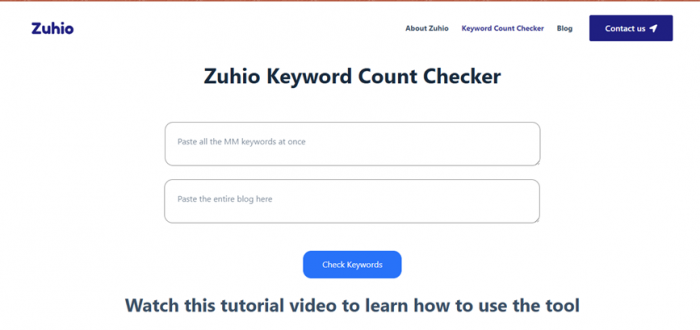
Screenshot 1: The Zuhio Keyword Count Checker page exactly as it loaded for me, two boxes and a Check Keywords button.
STEP 2 I pasted the keyword list into the top box
My ten must-mention keywords: davinci ai, ai image generator, ai video generator, multi model ai, sora alternative, veo alternative, midjourney alternative, kling ai, ai content creation, generative ai app.
MY OBSERVATION
This is where I quietly made my first mistake, though I did not know it yet. I copied the list straight out of my brief, bullet points and all, and the box swallowed it without any complaint. There was no warning, no formatting hint, nothing telling me the bullets might be a problem. At the time it looked completely fine, which is exactly why the issue caught me out later.
STEP 3 I pasted the whole blog into the bottom box
The complete DaVinci AI review, intro to conclusion, a couple of thousand words of it.
MY OBSERVATION
I liked that I could drop the entire article in one go. No character limit warning popped up and the full two thousand words went in without lag. A lot of small tools choke on a long paste or ask you to do it section by section, so being able to load the whole blog at once felt right for the job it is meant to do.
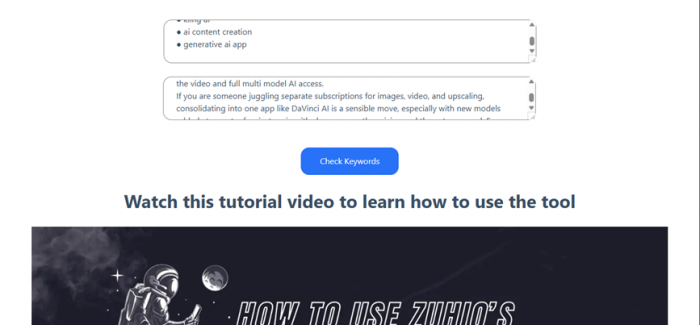
Screenshot 2: My keyword list in the top box and the full DaVinci AI blog in the bottom box, ready to check.
STEP 4 I clicked Check Keywords
And then I waited for the counts to appear.
MY OBSERVATION
This is the moment it let me down on the first try. I expected an instant list of counts. Instead the page just sat there, no spinner, no error, no movement at all. I will be honest about my reaction: my first thought was that the tool was broken, not that my own paste was the cause. That assumption cost me a reload and a re-paste before I worked out what was actually going on, which I cover in the next two sections.
If everything had gone smoothly, the result I expected is a list like the one below, where each keyword sits next to the number of times it shows up in the blog.
| KEYWORD | COUNT IN BLOG | STATUS |
|---|---|---|
| davinci ai (primary) | 14× | In |
| multi model ai | 3× | In |
| ai content creation | 3× | In |
| generative ai app | 3× | In |
| ai image generator | 2× | In |
| ai video generator | 2× | In |
| kling ai | 1× | In |
| sora alternative | 0× | Add |
| veo alternative | 0× | Add |
| midjourney alternative | 0× | Add |
An example of the read-out the tool is meant to give. The three “alternative” phrases at 0 are the must-mentions I still needed to write in.
WHY THIS READ-OUT IS USEFUL
The blog mentioned Sora, Veo and Midjourney by name, but never the exact phrases “sora alternative,” “veo alternative” or “midjourney alternative.” A count of 0 next to those is the tool quietly telling me those exact must-mentions are not in yet. That is the moment the keyword counter earns its place in the workflow.
The problem
Check Keywords did not work at first
Here is the honest bit. On my first run, I pasted both boxes, clicked Check Keywords, and nothing happened. No counts, no error message, no loading spinner. The page just sat there.
My first guess was a connection hiccup, so I reloaded the page, pasted the keyword list and the blog again, and clicked Check Keywords a second time. Same result. Still nothing. No results panel appeared at all.
That is frustrating in the moment, but it turned out to be fixable, and the reason is worth knowing before you blame the tool.
The fix
Why it stalls and how to solve it
The thing that tripped me up was the format of the keyword list, not the tool being broken. I had copied my keywords straight out of the brief, and they came across as a bulleted list, each line starting with a bullet symbol like this:
● davinci ai
● ai image generator
● ai video generator
Those leading bullet characters (the little dots) get pasted in as real text. A simple counter can choke on them or read “● davinci ai” as the keyword, which never matches the clean phrase in your blog. Strip the bullets out and paste the keywords as plain lines, and the check behaves.
THE FIX THAT WORKED
Paste your keywords as a clean list with no bullet symbols, no numbering, no dashes in front. One keyword per line (or separated by commas) in plain text. Removing the dots from my list was what got the check to actually run.
If a clean list still does nothing, walk through the rest of these in order. Each one fixed a stall for me at some point during testing:
• Paste as plain text. Use Ctrl+Shift+V (or Cmd+Shift+V) so you do not drag in hidden formatting, bullets or links from a doc.
• Fill both boxes. The check needs keywords on top and the blog underneath. If either is empty, nothing runs.
• Turn off ad blockers or strict extensions for the page. Aggressive blockers can stop the button's script from firing. A private or incognito window is a quick way to test this.
• Give a long blog a few seconds. A very large paste can take a moment. Click once and wait rather than clicking repeatedly.
• Try a different browser. If it stalls in one, a clean Chrome or Firefox window often sorts it.
• Re-check after a hard refresh. Ctrl+F5 clears a stale page state, then paste fresh into both boxes.
IF IT STILL WILL NOT RUN
Then it is likely a temporary issue on the tool's side rather than anything you did. Come back a little later, or use the Ctrl+F method as a fallback for that one submission. A tool doing nothing is annoying, but it does not mean your draft is wrong.
How to use the tool correctly
Once you know about the formatting trap, the workflow is genuinely quick. Here is the clean version.
STEP 1 Finish writing first
Write the blog naturally for a human reader. Do not write to hit keyword counts, that always reads stiff. Check the counts afterwards.
STEP 2 Clean up your keyword list
Take the keywords from your brief and strip any bullets, numbers or dashes. Leave one clean keyword per line.
STEP 3 Paste the list into the top box
The “Paste all the MM keywords at once” box. All of them together.
STEP 4 Paste the full blog into the bottom box
The whole thing, headings and all, so nothing is missed.
STEP 5 Click Check Keywords and read the counts
Scan for any keyword sitting at 0. Those are your must-mentions to add.
STEP 6 Fix, then recheck
Work the missing keywords in naturally, paste the updated blog back, and run it once more to confirm.
How to read your keyword count results
The tool gives you numbers. It does not tell you whether those numbers are good. That judgment is on you, so here is how I read them.
Any keyword at 0 is the priority
A zero means a required keyword is missing entirely. That is the single most useful thing the tool surfaces. Add those first, in a place where they read naturally, not jammed into a random sentence.
Your primary keyword should lead, but not dominate
It is fine for the main keyword to show the highest count. What you do not want is a number so high the phrase appears in nearly every paragraph. If your primary keyword is sitting far above everything else and the writing feels repetitive, swap a few instances for natural variations.
Density is a sanity check, not a target
The common working range people quote is roughly 1 to 2 percent for a primary keyword, meaning about 10 to 20 mentions in a 1,000 word article. Treat that as a comfort zone, not a rule. A genuinely useful article that covers its topic well often ranks without hitting any exact figure, and forcing a number usually hurts the writing.
ONE THING TO REMEMBER
Zuhio counts exact phrases. “sora alternative” will not be counted just because the blog says “Sora.” If a must-mention is a specific phrase, the words have to appear in that order for the count to register. That is a feature, not a bug, but it explains a lot of surprise zeros.
Who should use this tool
This is not a tool everyone needs every day. It earns its place for a specific kind of work.
• Writers working from briefs. If a client or editor hands you a must-mention list, this is the fastest way to confirm you hit all of it before submitting.
• Freelancers juggling several articles. A quick paste-and-check beats eyeballing a long draft for fifteen separate phrases.
• SEO and content leads doing final review. A fast sanity pass on whether assigned keywords landed, without opening a full platform.
• Anyone newer to SEO. No setup and no jargon. Paste, click, read the counts.
If your job is keyword research, rank tracking or backlinks, this is not that tool, and it does not pretend to be.
Zuhio compared with Ctrl+F, Yoast and Ahrefs
To be fair to it, here is where the keyword counter sits next to the things people already use for this.
| TOOL | CHECKS A FULL LIST AT ONCE | SETUP | BEST FOR |
|---|---|---|---|
| Zuhio Keyword Count Checker | Yes | None, free | Final must-mention check |
| Browser Find (Ctrl+F) | No, one at a time | None | Spot-checking a single phrase |
| Yoast SEO | One focus keyword | WordPress plugin | Live feedback while writing in WP |
| Ahrefs / SEMrush | Not the focus | Paid account | Research, rank tracking, audits |
The honest read: Zuhio is not competing with Ahrefs. It is competing with the tedium of Ctrl+F. For checking a list of required keywords against a finished draft, it is faster than anything else on that row, when it runs.
My final verdict
Here is where I land after running a real article through it. I went in expecting either a slick tool or a useless one, and it turned out to be neither. It is a small, single-purpose utility that does one thing I genuinely have to do on every briefed article: confirm that a list of must-mention keywords actually made it into my draft. When my input was clean, it did that faster than the manual routine I would otherwise grind through, and for free.
The rocky start is part of my honest take. That first “I clicked Check and nothing happened” moment nearly made me write the tool off, and I suspect it is why a lot of people give up on it. But the cause was my own bulleted paste, not the tool, and once I stripped the bullets it ran every time. I would rather tell you that plainly than pretend my test was flawless.
So would I use it again? Yes, and I already have. It now sits as the last step before I submit a briefed piece. My advice from the test is simple: paste your keywords as a clean list rather than bullets, treat the counts as a checklist instead of a target, and keep your own judgment about whether the writing reads well. Do that and it quietly saves you the fifteen rounds of Ctrl+F I used to do by hand. For a free tool that does exactly what it promises, that is a fair deal, and it has earned a spot in my workflow.
Post Comments
Be the first to post comment!