Table of Content
- 1. Canva and CapCut Core positioning and use cases
- 2. Interface, learning curve and workflow
- 3. Design and template ecosystem
- 4. Video editing power and control
- 5. AI features: text, image, and video
- 6. Collaboration, cloud and ecosystem
- 7. Pricing, plans and value for money
- 8. Performance, limitations and concerns
- 9. Which tool should you choose?
- Final Verdict
Canva and CapCut solve different problems: Canva is a design-first, multi-format content suite with “good enough” video, while CapCut is a video‑first editor with deep short‑form and AI video features. The best choice depends on whether your priority is brand‑consistent visuals across formats (Canva) or punchy, trend‑driven videos (CapCut).
1. Canva and CapCut Core positioning and use cases
Canva started as a drag‑and‑drop graphic design platform and has evolved into a full content suite covering social posts, presentations, documents, websites and lightweight video. CapCut was built as a mobile‑first video editor, tightly aligned with TikTok‑style content and then expanded to desktop and web for multi‑track editing and AI effects.
For creators and marketers, that translates into two different “defaults”. Canva is ideal when you need one place for social posts, carousels, PDFs, pitch decks, ads and occasional videos, all under a consistent brand system. CapCut is stronger when your strategy is video‑heavy Reels, Shorts, TikToks, YouTube intros, UGC ads, vlogs and trend‑based edits.
Overview at a glance
| Dimension | Canva | CapCut |
| Core DNA | Graphic design and multi‑format content suite. | Short‑form and social‑first video editor. |
| Best for | Brand kits, social graphics, decks, multi‑asset campaigns. | Fast edits, trend effects, captions, TikTok/Reels content. |
| Platforms | Web, desktop apps, mobile, browser‑based editing. | Mobile (flagship), desktop, web editor, TikTok integration. |
| Learning curve | Very beginner‑friendly drag‑and‑drop design. | Easy for basic edits, more layers for advanced video control. |
| Content types | Static, animated, video, docs, Whiteboards, websites. | Video‑focused, with some static design features emerging. |
2. Interface, learning curve and workflow
Canva’s interface is intentionally simple: a left sidebar for templates and assets, a central canvas, and contextual toolbars that change based on selection. This makes it easy for non‑designers to build social posts, thumbnails, or slides by tweaking templates rather than designing from scratch.
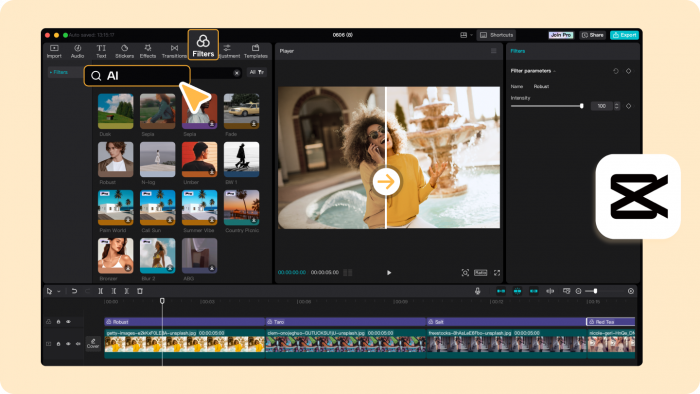
CapCut’s UI looks closer to a “real” video editor, particularly on desktop: timeline tracks, preview monitor, media bin, and effect panels. It can feel slightly more intimidating at first but offers more control for clip‑by‑clip timing, transitions, and layered effects once you get comfortable.
Key points to note
● For complete beginners who mainly design static posts and simple videos, Canva usually feels more approachable.
● For anyone serious about editing pacing, audio sync, or complex sequences, CapCut’s timeline and multi‑track workflow are more powerful.
3. Design and template ecosystem
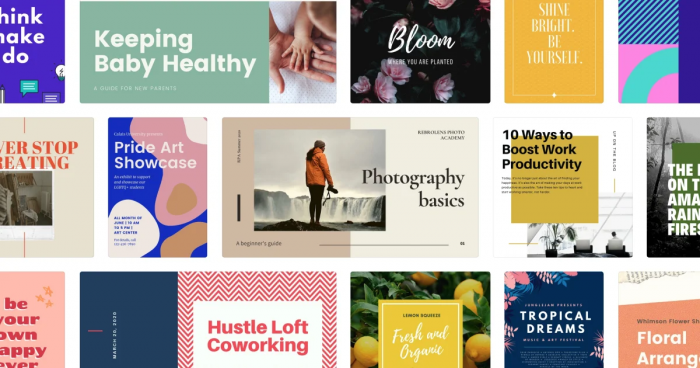
Canva’s biggest strength is its enormous library of professionally designed templates across almost every content format. You get templates for Instagram posts, YouTube thumbnails, LinkedIn carousels, email headers, flyers, business cards, pitch decks, infographics, resumes, and more.
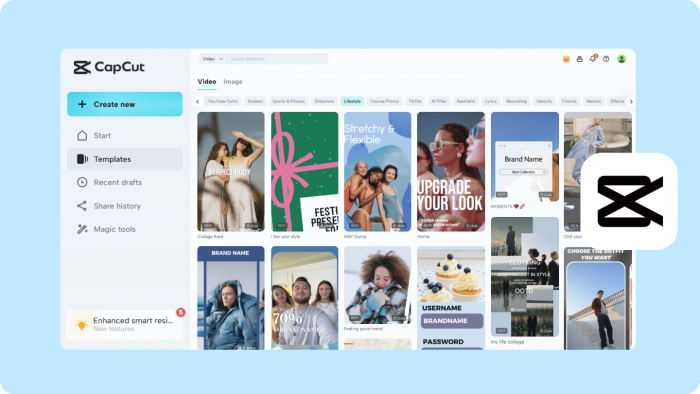
CapCut also has templates, but they are tuned for short‑form videos Reels, TikToks, Intros, Outros, UGC ads, meme formats, and trending edits. The emphasis is not on brand‑consistent layouts but on fast, eye‑catching motion sequences you can adapt in seconds.
Template and design capabilities
| Aspect | Canva | CapCut |
| Template breadth | Very wide: static, animated, video, print, docs, slides. | Focused: social video, short‑form, intros, ads. |
| Brand kits | Built‑in Brand Kit for colors, logos, fonts and presets. | Limited brand‑system management; more per‑project styling. |
| Layout control | Strong grid, alignment, typography and composition tools. | Basic layout for overlays; focus is on motion, not static design. |
| Static design | Mature ecosystem for graphics and documents. | Newer static graphics features, still less sophisticated. |
If your content calendar includes pitch decks, PDFs, social carousels and marketing kits, Canva gives you a unified visual system. If you mainly need new hooks for Reels every day, CapCut’s video templates will feel more relevant.
4. Video editing power and control
This is where their paths diverge sharply. Canva has a simple video timeline suitable for basic edits, trim clips, reorder, add transitions, drop in text and music. It works perfectly for explainer videos, promo teasers, product walkthroughs and course intros where layout and branding matter more than hyper‑precise cuts.
CapCut, by contrast, is designed as a full video editor with multi‑track timelines, keyframes, speed control, and a deep library of effects. It supports:
● Speed curve editing, slow motion, and time‑lapse for dynamic pacing.
● Multi‑track editing for stacking clips, B‑roll, overlays and sound effects.
● Advanced text animations, motion blur, transitions and filters tailored to social video.
For a talking‑head video with B‑roll overlays, beat‑synced captions and quick punch‑in zooms, CapCut will generally be faster and more flexible. For a branded video ad where you care about typography, spacing and cohesive visuals across a campaign, Canva’s design‑first approach wins.
Video editing comparison
| Feature | Canva | CapCut |
| Timeline | Simple, single main track with basic layering. | Multi‑track with detailed clip and audio control. |
| Speed control | Basic trimming and duration adjustment. | Speed curves, slow‑mo, time‑lapse, ramping. |
| Effects | Intro‑level transitions and animations. | Large library of transitions, filters, motion effects. |
| Captions | Manual text overlays; some AI tools in beta regions. | AI auto‑captions, translation and subtitles tuned for social. |
| Audio control | Basic music and voiceover layering. | Finer volume control, sound effects, sync with beats. |
5. AI features: text, image, and video
Both tools now lean heavily on AI, but they use it differently.
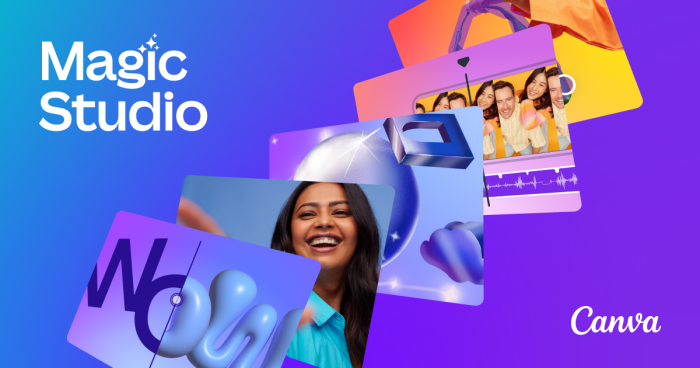
Canva bundles its AI under Magic Studio: Magic Write (AI text generator), Magic Edit (object‑level image editing), Magic Design (auto‑generated layouts), and more. These are aimed at speeding up brainstorming, visual ideation and content repurposing e.g., turning a blog into social posts or auto‑generating slide decks.
CapCut’s AI is focused on making video workflows faster and more accessible. It offers AI‑powered auto‑captions, background removal, retouching, image enhancement, text‑to‑speech and translation. These tools are especially helpful for creators who publish in multiple languages or want studio‑style videos without a complex setup.
Key AI differences
● Canva’s AI is design‑centric: layout suggestions, copywriting, image edits, and multi‑format content generation.
● CapCut’s AI is video‑centric: subtitles, voiceover, reframing, retouching, and performance‑oriented enhancements.
6. Collaboration, cloud and ecosystem
Canva behaves like a modern SaaS productivity tool. Designs live in the cloud, autosave is default, and multiple team members can comment and edit in real time. It integrates with productivity and marketing stacks Google Drive, Microsoft, social schedulers, and other business tools making it easy to embed into workflows.
CapCut also supports cloud storage and real‑time collaboration, particularly in its Pro tiers. Teams can access shared projects, edit from different devices, and keep assets synced, which is useful for agencies or distributed creator teams.
From an ecosystem perspective, Canva is more widely adopted across businesses, education and non‑profits, reflected in its significantly higher adoption rates compared to CapCut. CapCut’s adoption is driven by the explosion of short‑form creators rather than enterprise teams.
7. Pricing, plans and value for money
Both platforms offer generous free tiers with optional paid upgrades.
Canva’s free plan gives access to thousands of templates and core features, with paid Pro and Teams plans unlocking Brand Kits, full asset libraries, advanced AI tools and more storage. The value is particularly strong for small businesses that would otherwise buy separate tools for graphics, presentations and basic video.
CapCut’s core editing experience including many templates, filters and basic AI tools remains free. However, more advanced effects, premium templates and some AI capabilities are moving behind CapCut Pro, a subscription targeted at serious creators and brands.
Pricing and value snapshot
| Aspect | Canva | CapCut |
| Free tier | Extensive design and basic video features. | Strong editing toolkit with many free effects. |
| Paid tiers | Pro and Teams unlock brand, asset and AI power. | CapCut Pro unlocks premium effects, cloud collab, AI. |
| Value focus | All‑in‑one visual suite for teams and brands. | High‑end social‑video editor at low entry cost. |
8. Performance, limitations and concerns
Canva’s main limitations show up when you push into pro‑grade design or video. It lacks native support for formats like PSD/AI, some exports are limited, and motion control is more basic than traditional NLEs. Heavy video projects or very long timelines can feel constrained compared to dedicated editors.
CapCut’s desktop and web editors, while powerful, can struggle on lower‑end machines when handling long or high‑resolution projects, leading to slowdowns and occasional freezes. It also doesn’t yet match professional suites in advanced color grading, multi‑camera workflows, or unlimited tracks.
Another factor creators and brands consider is data privacy. CapCut is owned by ByteDance, and some users raise concerns about data handling, especially for corporate or sensitive projects. Canva, as a widely adopted SaaS tool in business and education, promotes enterprise‑grade security, though its full policies should always be reviewed by legal/IT teams.
9. Which tool should you choose?
If you are a business, marketer or educator looking for a central hub for brand‑consistent visuals, social posts, pitch decks, documents, simple videos Canva is usually the more strategic core tool, with video editing as a bonus. You can then supplement it with a dedicated video editor later if you outgrow its timeline.
If you are a creator whose content strategy is video‑first, especially on TikTok, Reels and Shorts, CapCut should be your primary editor, with Canva playing a supporting role for thumbnails, channel art and static graphics. Many teams actually use both: CapCut for editing the video itself and Canva for thumbnails, social repurposes and campaign collateral.
Quick decision cues
● Choose Canva if your biggest needs are brand kits, multi‑format content, collaboration and design consistency.
● Choose CapCut if your biggest needs are speed, trend‑driven edits, captions, and deep control over short‑form video pacing.
Final Verdict
Canva and CapCut are no longer competing in the same lane; they complement two very different content strategies. Canva excels as a brand command center where teams can spin up on‑brand visuals, documents and simple videos without needing design expertise, making it ideal as the visual backbone of a business or creator brand. CapCut, on the other hand, is built for velocity and impact in the short‑form video world, where fast turnarounds, punchy edits and native‑feeling social content matter more than meticulous layout control.
If your priority is a cohesive, professional presence across decks, PDFs, posts and lightweight video, Canva deserves the central spot in your stack. If your growth depends on grabbing attention in under 10 seconds on Reels, TikTok or Shorts, CapCut is the sharper tool and pairing it with Canva for thumbnails and supporting visuals gives you the best of both worlds.
Post Comments
Be the first to post comment!